2.135 FAQ-1182 How to import Eastern/Central European characters?
Import-Eastern-Central-European-Characters
Last Update: 6/19/2023
To import data file containing Eastern/Central European characters (which is ANSI encoding), try one of the following three ways:
solution 1: temporarily set @cps to 1250
- Select Origin menu Window: Script Window.
- In the Script Window that open, enter
@cps=1250
and press Enter key to temporarily set @cps to 1250.
- Import your data.
- Note: Remember to set @cps back to -1 (default) after import.
solution 2: change OS code page to Czech
- Open Windows Control Panel.
- Select Clock and Region > Region link to open the Region dialog.
- Go to Administrative tab. Under Language for non-Unicode programs section, click Change System Locale button.
- Select the system locale to be Czech (Czechia).
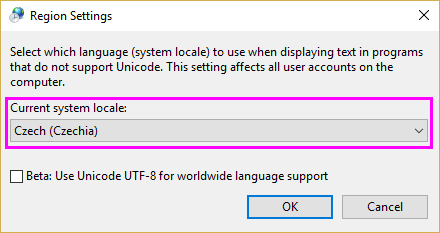
- Click OK. Restart your PC as prompted.
- After restart, try to import your data.
- Note: This change will affect the whole OS, so that Micro Softwares (Word, Excel, PowerPoit, etc.), Notepad can display Eastern/Central European characters correctly as well.
solution 3: resave file as UTF-8 encoding
- Follow steps in solution 2 above to change OS code page to be Czech (Czechia).
- Open the data file in Notepad. It should display correctly.
- Select from menu File: Save as and then choose UTF-8 for Encoding to save it with encoding as UTF-8.
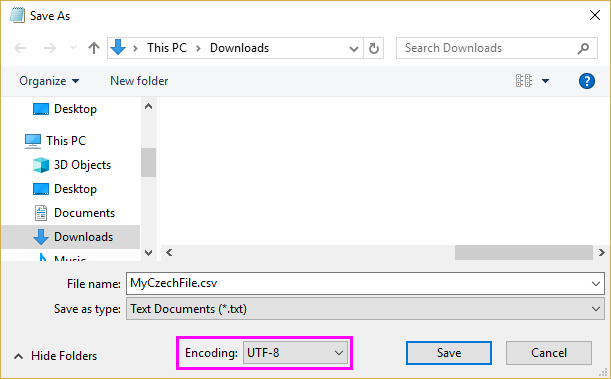
- Now you can change OS code page back to the original, and then try to import your data. It should be imported correctly.
Keywords:Eastern letter, Central European data, Czech, data connector, data import, special character, data format, data type