1.168 FAQ-830 How to white out a layer?
How_to_white_out_a_layer
Last Update: 9/19/2016
It is supposed that there are two layers in a graph. As usual, it will force to display all of data in both layers even if Layer2 has a background color. If you want to plot the data of Layer2 on a white background, you can achieve it by specifying the drawing order of layers in Layer Management dialog or Plot Details dialog:
In Layer Management Dialog
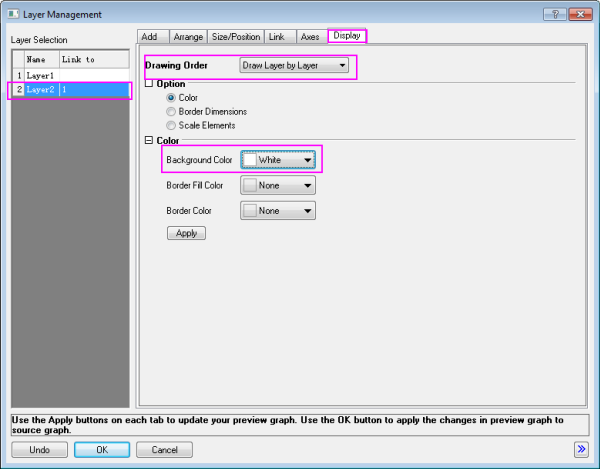
- Active the graph and select Graph: Layer Management... from Origin menu to launch the Layer Management dialog.
- Select Layer2 in the left panel of dialog
- Go to Display tab, and then select Draw Layer by Layer in the drop-down list of Drawing Order, which specifying that Layer2 will be drawn after Layer1 being completely drawn. For draw layer by layer, if you specify a background color for Layer2, then the background will mask elements of Layer1.
- Select color White in Background Color, and then click Apply to execute the background setting.
- At last, click OK to finish all the setting.
In Plot Details Dialog
- Double-click directly on the data plot to launch the Plot Details dialog.
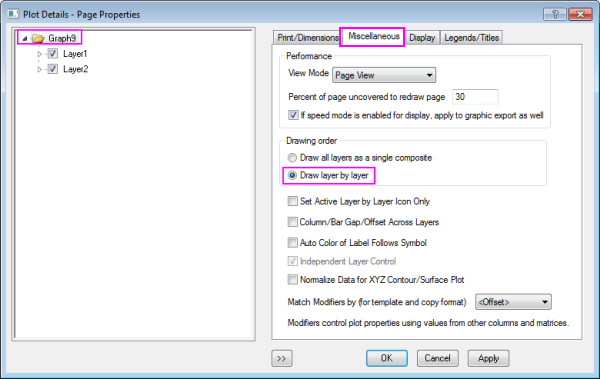
- Select Graph tree node in left panel, and then go to Miscellaneous tab to click the radio button of Draw Layer by Layer in Drawing Order item.
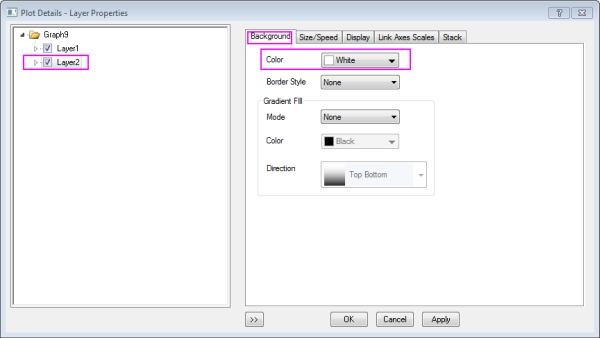
- Select Layer2 tree node in left panel, and then go to Background tab to select color White in Color item.
- Click OK button to execute the setting.
| Note: If you leave the background as None then the data in Layer1 will be still visible.
|
Keywords:Layer, Background, Drawing order, White out