Last Update: 8/19/2025
If you find the graph does not match the data from the source worksheet, you can troubleshoot by checking the following:
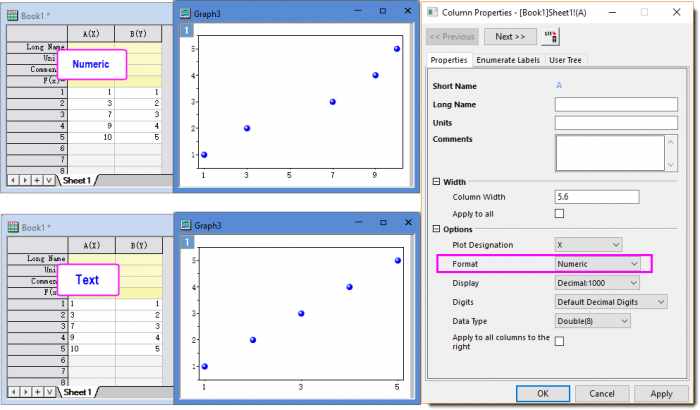
If data in the source worksheet is left-aligned, it is Text format rather than Numeric (which is right-aligned by default). Note: You may need to resize the column width to check if it's left-aligned.
To fix it:
Right click on the column and select Properties.... In the Column Properties dialog, make sure the Format is set correctly.
Double click on the plot to open the Plot Details dialog. On the left panel, you can check which columns are used as X and Y.
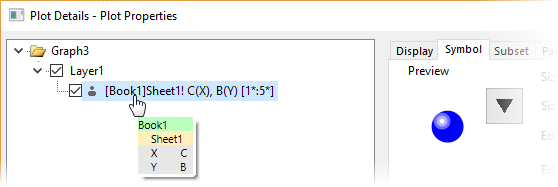
If the column that is supposed to be X isn't set as X, Origin will automatically use the nearest X column to the left of the Y column. If no X column in the sheet, the row index (<auto>) will be used.
To fix it:
Or,
If you plot with a built-in graph type menu but it doesn’t plot as expected, it’s possible a graph template with the same name of the built-in one is saved in the User Files Folder (UFF). This user-defined one has higher priority and used. Something may be wrong with it such as
To fix it:
This is rare. But if you have saved some graph theme with some axis range fixed, etc. and set it as system theme. Then when you plot with built-in graph template, such system theme will be applied onto the graph automatically and may have some issues.
To fix it:
Try to plot again.
Keywords:not pulling correct data, fail to make plot, plot not match source, plot wrong scale, plot disappear