Last Update: 3/4/2020
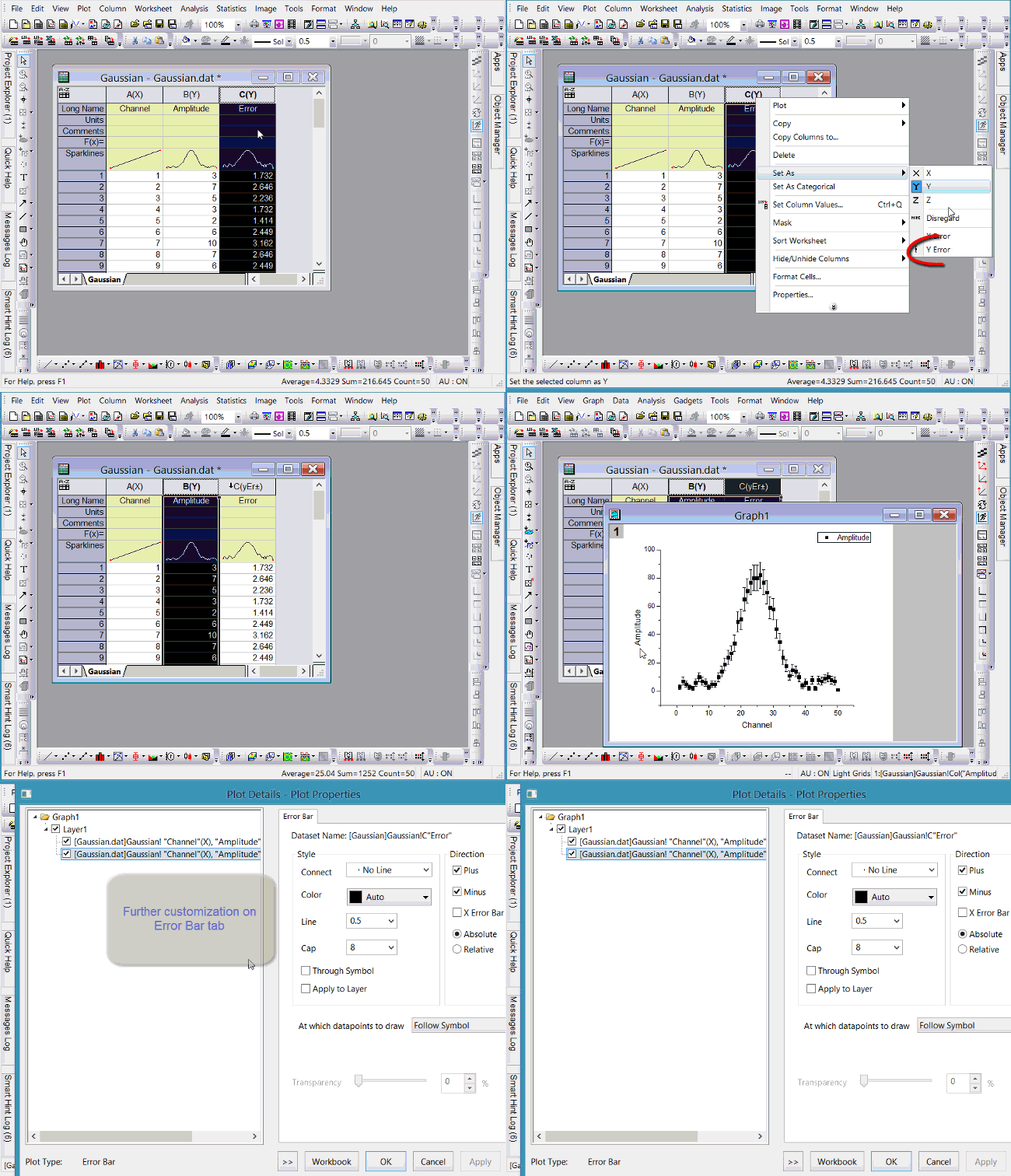
Each column has plot designations such as X, Y, Z, Y Error, Label, etc. If you set a column as Y Error, and then select Y column on the left and YErr column together to plot them, the YErr column will be plotted as Y error bars. You can double click the error bars in graph to further customize them in Plot Details dialog.
If you have different positive and negative error bars, there are two ways:

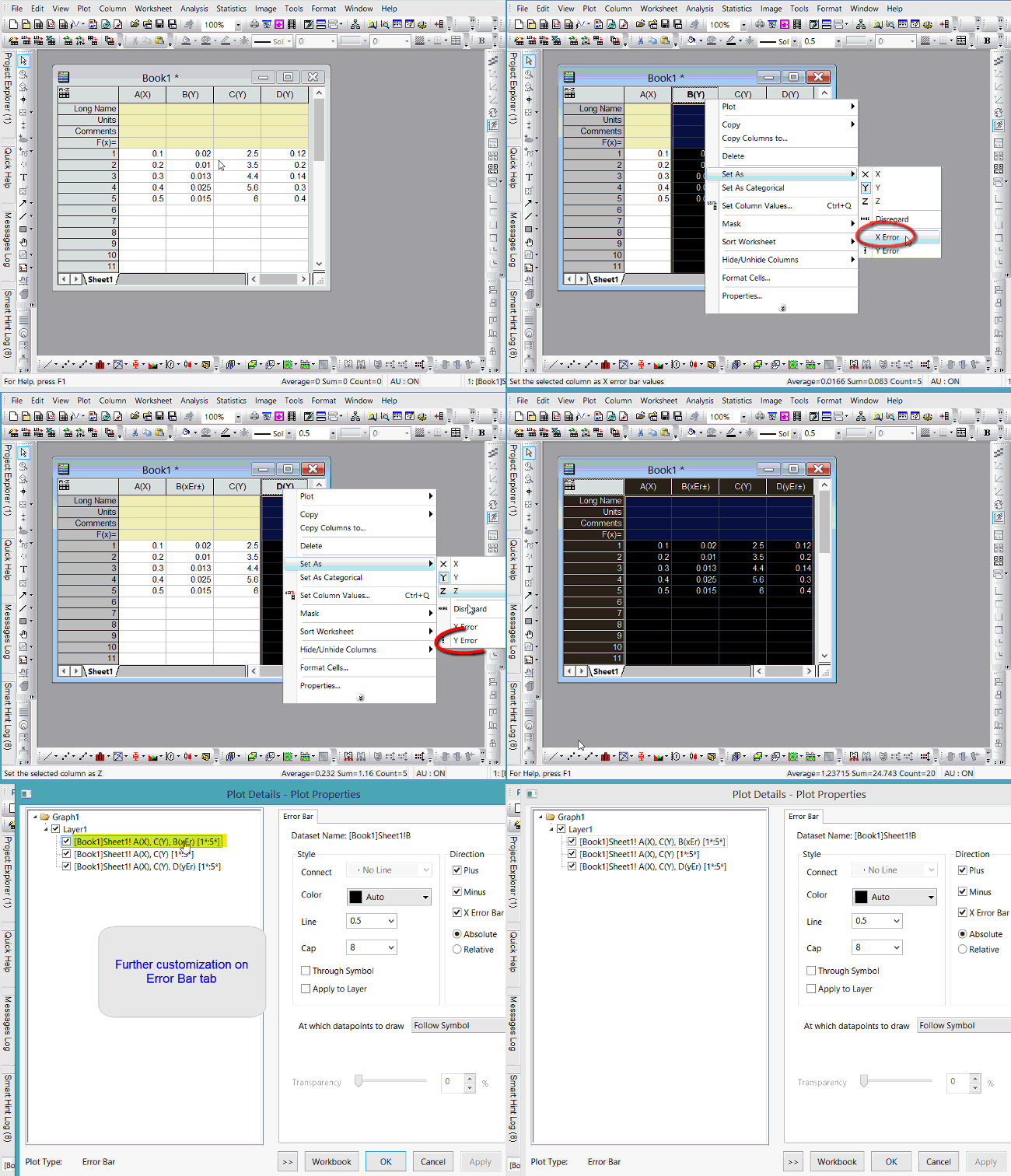
Same as plotting Y Error Bar, if a column is set as X Error, it will be plotted as X error bars.
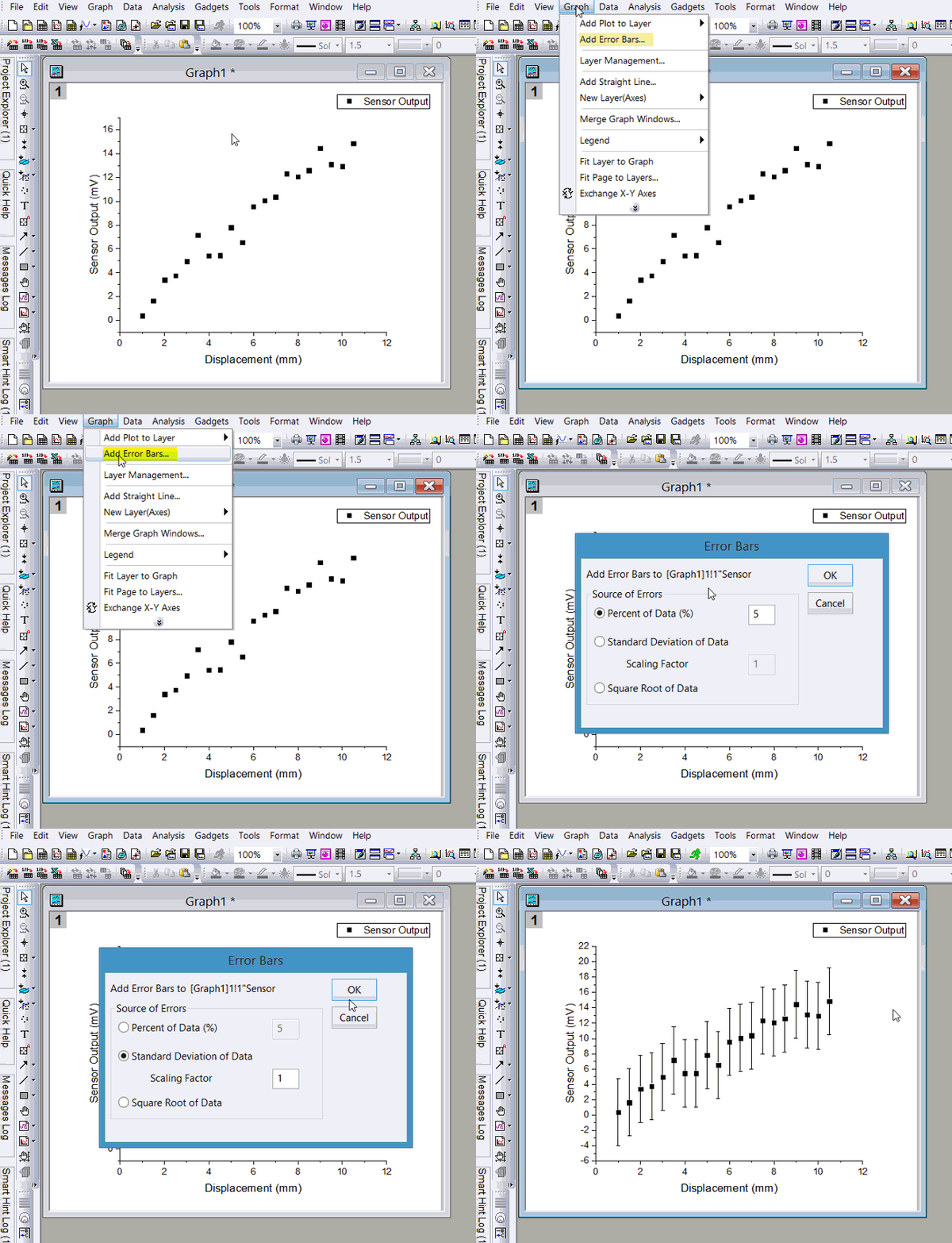
If there is no error data column, you can add statistics error by calculating simple dataset statistics. With Graph window active, choose Insert: Error Bars.
Sometimes when data is very dense, it's hard to see all error bars. You may want to show error bars as a filled band. Here is how to do it.

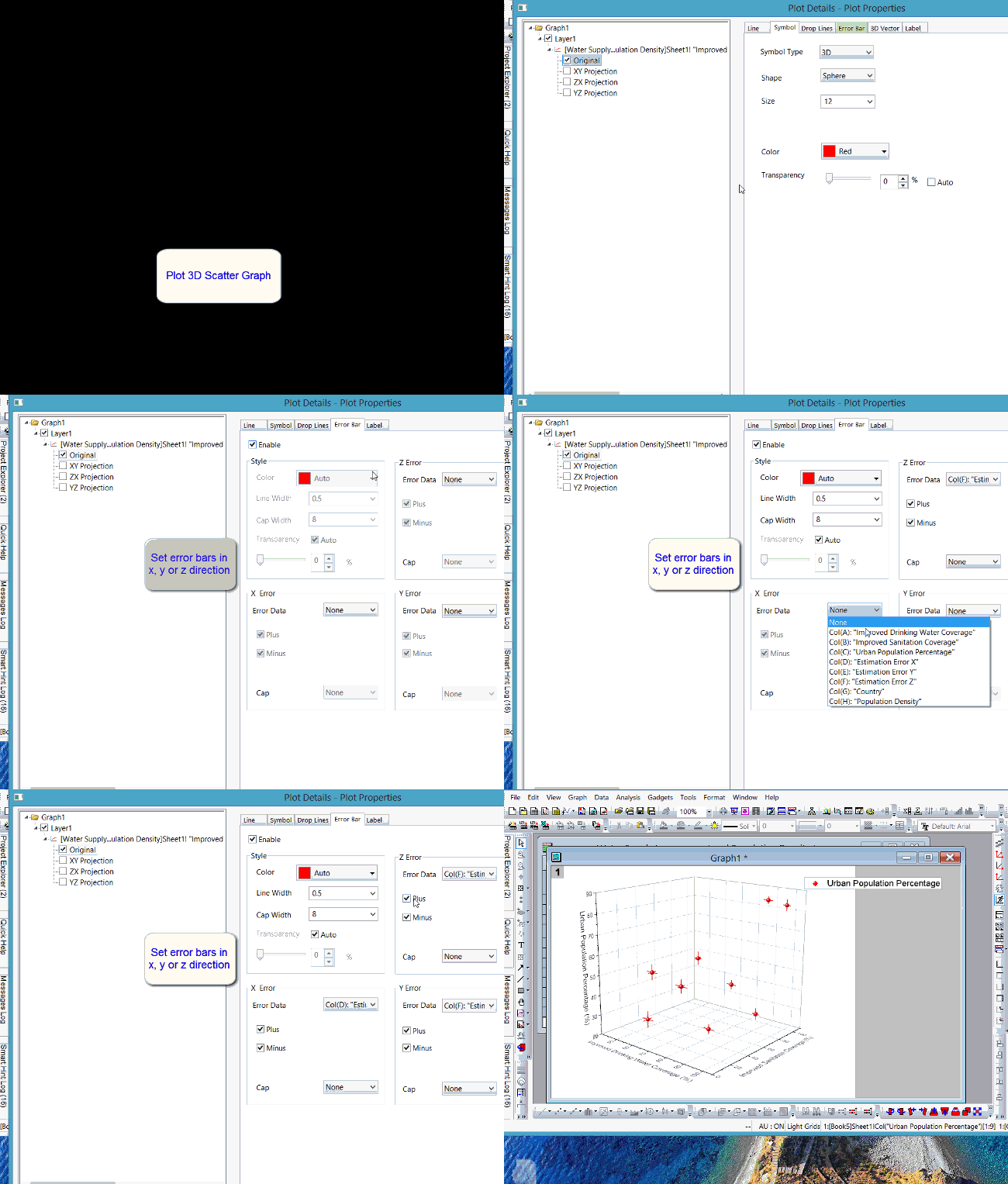
If you plot 3D scatter plot from XYZ columns, you can open Plot Details dialog and specify any other column in worksheet as error bar. Origin supports error bar in X, Y, and Z directions in 3D graph.
If you plot 3D scatter plot from Matrixbook, the error bar data must be put to a matrix object in same matrixsheet.
E.g. Click the D icon in upper-right corner of Matrixsheet and choose Add. In new Matrix object created, enter error bar data. Then choose Plot: 3D Line+Scatter: 3D Scatter + Error Bar
 | While useful under certain conditions to display error information in this fashion, you should be aware that Linear Fit and Nonlinear Curve Fit tools will only use one Y Error dataset when fitting and an error is treated as a single value offset - both positive and negative. This means that any “X Error bar” is ignored, any “Minus Y Error Bar” is ignored and a “Plus Y Error Bar” is treated the same as a “Plus and Minus Y Error Bar”. |
Keywords:error bar