2.38 FAQ-474 How do I edit and format text in merged cells?
Customize-Text-in-MergedCells
Last Update: 8/28/2025
Worksheets have the option of merging adjacent cells of repeating text, for various regions in the worksheet. Cells can be merged after text is entered (by clicking the Merge Cells button  ) or you can opt to dynamically merge cells with same content. To merge cells dynamically, click Format : Worksheet or press F4 to open the Worksheet Properties dialog box. Click the Format tab and under Text Control, edit the Apply To and Dynamic Merge lists. Note that each Apply To option is configured separately.
You can also select the region you want to dynamically merge, right click and choose Format Cells. Set the Dynamic Merge to Horizontal, Vertical or Both.
) or you can opt to dynamically merge cells with same content. To merge cells dynamically, click Format : Worksheet or press F4 to open the Worksheet Properties dialog box. Click the Format tab and under Text Control, edit the Apply To and Dynamic Merge lists. Note that each Apply To option is configured separately.
You can also select the region you want to dynamically merge, right click and choose Format Cells. Set the Dynamic Merge to Horizontal, Vertical or Both.
When you merge cells dynamically, the individual cells continue to hold their original content. You can still click or double click select a single cell:
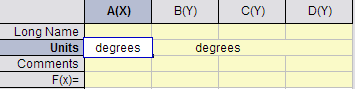
Obviously if you modify a cell's contents, it will not be merged with adjacent cells. If you want to modify contents of all cells in the merged area, there are two quick ways:
- In Origin 2021 and later versions, select the whole merged area. Type new content. Hold Ctrl key and press Enter. It will modify all selected cells and therefore they are still dynamically merged.
- Click the upper-left cell's content. Press Enter. Drag the black dot at the bottom-right corner of the upper-left cell till (+) appears. Drag your selection to the right (and down, if needed) to auto fill other cells with the same content.
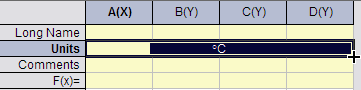
Use the same procedure when formatting text in merged cells.
 | Beginning with Origin 2018b all merged cells within a selected range, including non-contiguous blocks of merged cells, can be un-merged by clicking the Merge cells button on the Style toolbar.
|
Keywords:auto fill, dynamic merge, combined, worksheet, row, label