 can be customized as follow. You can also refer to this Youtube page for a video tutorial.
Last Update: 4/25/2023
Data label added by the Annotation tool can be customized as follow. You can also refer to this Youtube page for a video tutorial.
To reconstruct/customize annotation content/format:
 to select a built-in format string from the context menu. An Examples sub-menu provides some more complex examples. Alternately, enter a string directly by typing or by using LabTalk Substitution Notation. A combination of literal text and variables is supported.
To toggle among built-in annotation format options:
To move existing label to a new point:
 . Then hold down ALT key and drag an existing label from point to point. The label will automatically refresh according to the current point condition.
To duplicate existing label to a new point:
. Then hold down Ctrl+Shift key and drag an existing label to another point. The new added label will automatically update according to the new point condition. 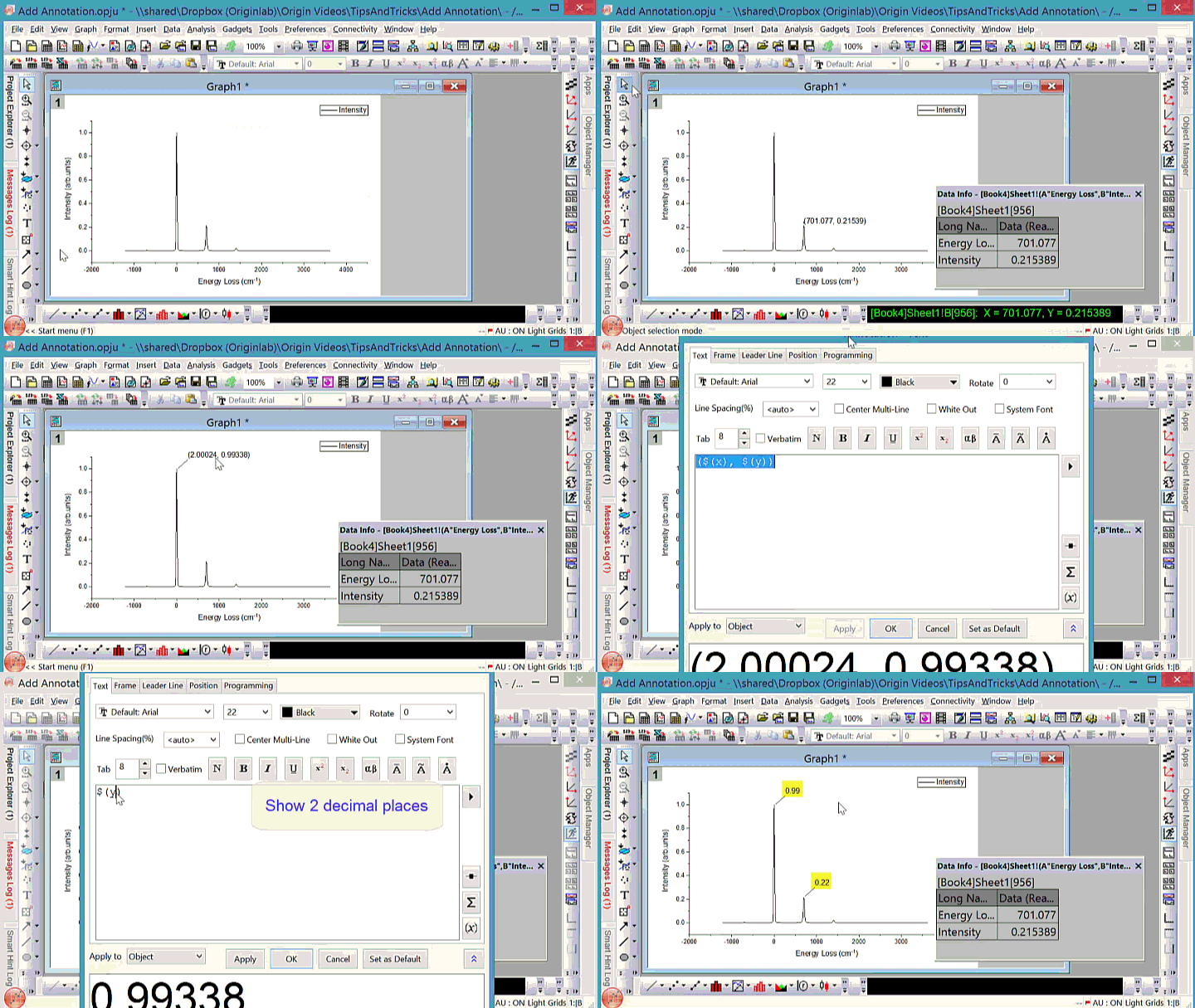
To annotate peak position with special symbol:
 . This will opens the Symbol Map dialog. Select the special symbol you want and click Insert button to insert it to annotation.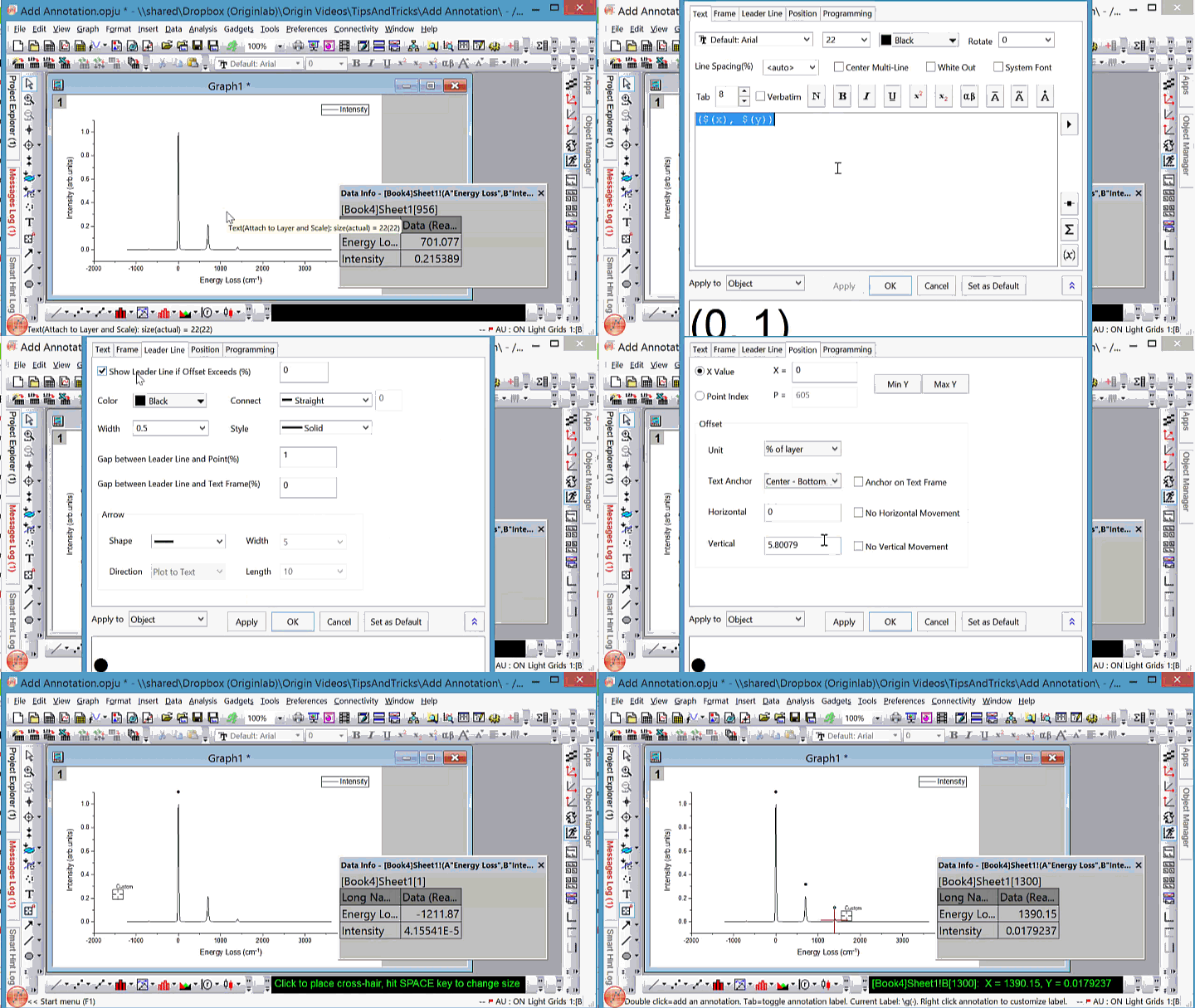
Keywords:Annotation, Custom label, Custom annotation