2.36 FAQ-472 How to set the date format if the data is not consistent with the desired display format?
Convert-Date-Format
Last Update: 10/14/2020
Recent versions of Origin have made import of date-time data much easier, particularly with the addition of the Text/CSV Data Connector, which will automatically handle formatting of commonly-recognized date-time formats.
That said, you may encounter situations -- particularly if you are using non-standard date-time formats -- in which your date-time data are not automatically formatted on import. You can quickly spot problems by looking at alignment of data in the worksheet cell: if date-time data are left-aligned they are being treated as text, and not date-time (which is stored internally as numeric). This FAQ will show you how to display your date-time data in the desired format.
To convert text data to numeric data or to change the display format of data, do the following:
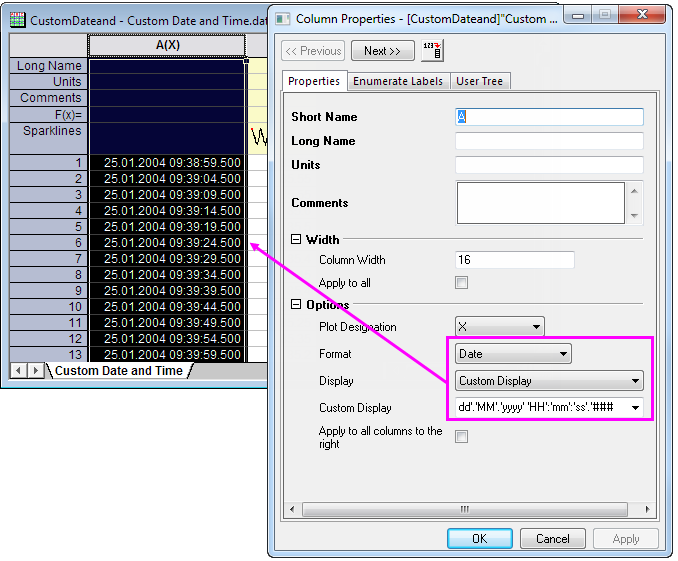
- Double-click on the column heading to open the Column Properties dialog and set Format to Date.
- Click the Display list and pick the corresponding date-time syntax string from the list and click Apply. For guidelines on date-time syntax, see Dates and Times in the Worksheet.
- If a suitable format is not available from the list, you can define your own in one of two ways (refer to the syntax in the previous link):
- Pre-define the string in the Custom Date Formats of Preference: Options (Miscellaneous tab). The string then appears as one of the two "Global Custom" display formats available from the Display list.
- Set Display to Custom Display and enter your string directly in the Custom Display box that becomes available. Your custom format will be added to the Custom Display list and can be used in future sessions.
-
Keywords:format, date, display