1.262 FAQ-1063 How to change my slideshow order in OriginPro?
change-slide-order-originpro
Last Update: 9/15/2020
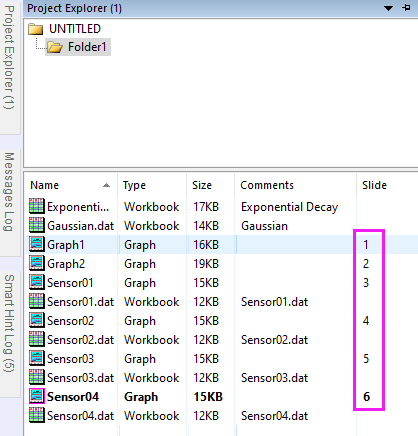
When graph is created or loaded into Origin, Origin assigns a slice index of it, e.g. 1, 2, 3, ... This determines the order of graphs when presenting graphs in Origin's slide show tool  or sent to Powerpoint
  .
You can see the slide index in Details view of Project Explorer.
.
You can see the slide index in Details view of Project Explorer.
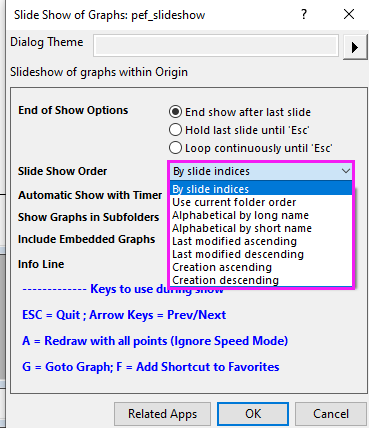
By default the slide show order is by slide indices. But you can also choose other available orders such as alphabetic order, creation order, etc.
If none of the available orders work for you, you can manually adjust slide order and skip some graphs in slideshow in Project Explorer. To do so:
- Show the bottom panel of Project Explorer (PE) in *Details* view.
- Click the Slide column header so the bottom panel is sorted by slide index. You will see an upper/down arrow next to slide column header. Note: This step can NOT be skipped.
- With bottom panel sorted by slide index, drag graph/layout window in PE up or down to change the slide index number.
- To skip a graph in slide show, right-click on the window in PE and choose Skip Slide.
- To reset slide indices by another column, e.g. by ascending graph window name: First click Name column header in PE so graph windows are sorted ascendingly, then right click in gray area of bottom panel and choose Reset Slide Indices context menu.
Keywords: