1.108 FAQ-650 How to change the size of a graph layer?
change-layer-size
Last Update: 4/8/2019
2D
To roughly adjust the layer size in 2D graph,
- Click within the layer (don't click on plot) or Alt+click within layer to select the layer.
- 8 green handles will show around the layer. Drag the handles to resize the layer. Press Ctrl key while dragging will keep the aspect ratio of the layer.
- After you resize the layer, some part may run into gray area. By default only white area of graph will be printed, exported or copied. You can choose Graph: Fit Page to Layer will adjust graph page size to fit the layer.
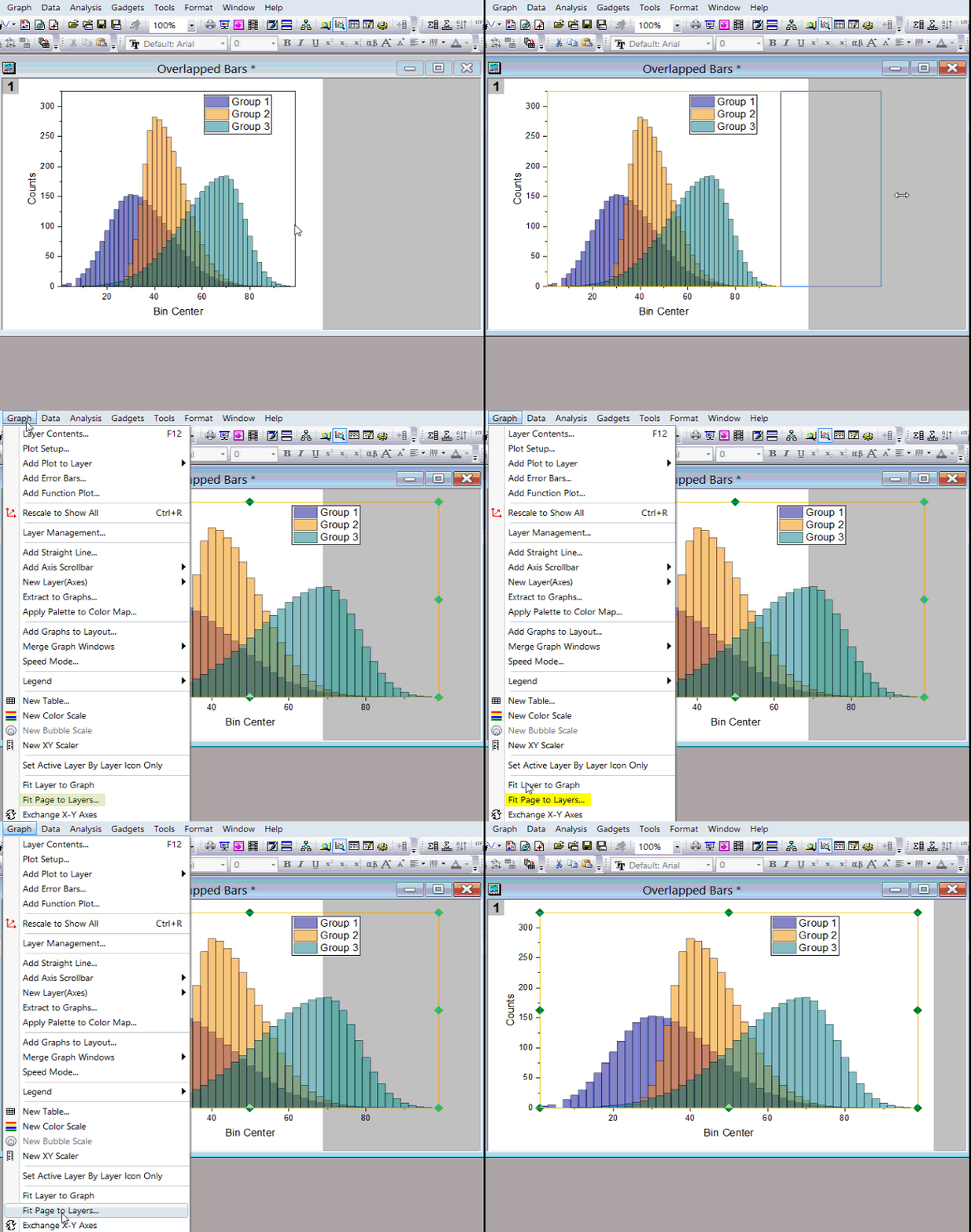
- Or if your graph page size need to be fixed while some layer is bigger than the graph page size. You can choose Graph: Fit Layer to Graph to adjust layer size so it will fit within the page (white area).
Note:
- To precisely adjust the layer size in 2D Graph, select Format: Layer and then customize the Layer Area under Size tab in Plot Details dialog.
- In multi-panel/multi-layer graphs, if you want to resize other panels/layers together, link the layers and also set Unit to % of Linked Layer on Size tab of linked layers first.
3D
Click within the layer (don't click on plot) or Alt+click within layer to select the layer. To resize a 3D graph in one particular direction, click the Resize button on the graph and drag any hotspot on the 3D resize control.
To resize a 3D graph with aspect ratio retained,
- Click within the layer (don't click on plot) or Alt+click within layer to select the layer. Drag eight blue handles to resize the layer.
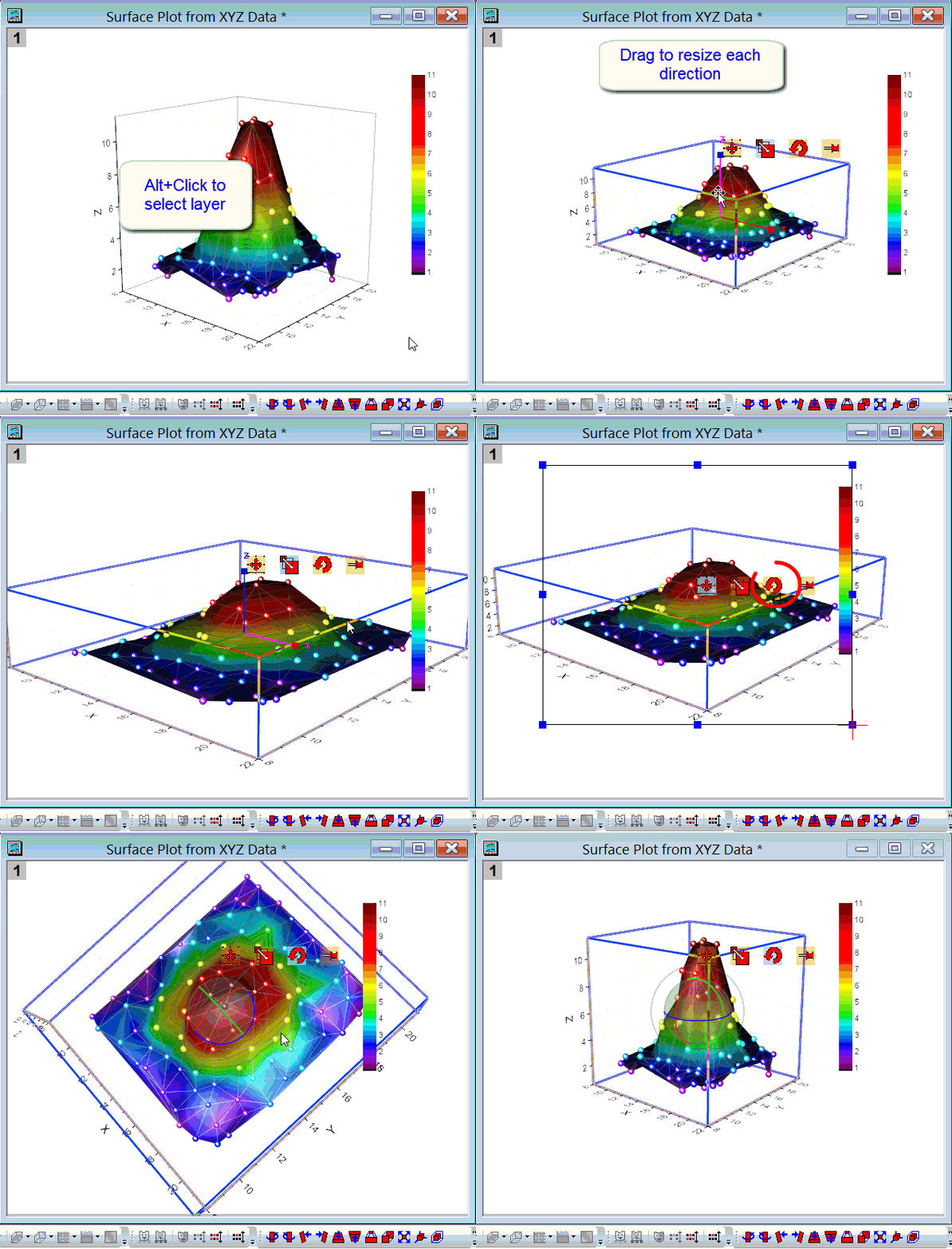
To precisely adjust layer size, select Format: Layer and then customize the Layer Area under Size tab in Plot Details dialog.
Note: If you link axis length to scale, you can't resize layer in each direction freely.
Keywords:layer size, resize, aspect ratio, green handles, rotate