2.117 FAQ-1053 How to allow changing data when Data Connector is used?
Change-Data-When-Connector-Used
Last Update: 10/13/2021
Data imported by Data Connector is protected by default.
- Data imported via Text/CSV and Excel Connectors is sortable but not editable.
- Data imported via Connector types other than Text/CSV and Excel, is neither sortable nor editable.
Free-Editing or Sorting of Data Imported by Data Connector
Users not concerned with data protection can bypass all sorting and editing restrictions by changing the value of LabTalk system variable @IPDC before you import your data.
- Select Preference: System Variables....
- In the Set System Variables dialog, type "IPDC" in Variable column and "0" in Value .
- Import data by Data Connector.
 | If you want to remove all restrictions for the current session only, click Window: Script Window and at the prompt type the following, then press Enter:
@IPDC=0
|
Methods for Managing Editing of Connector Data that is Already Imported
To modify data that has been imported via Connector, click the Connector icon  and choose one of the following:
- Unlock Imported Data: The data remains unlocked until you click the Connector icon and choose Import (at which time, data will be overwritten and edit protections restored).
- Disconnect Sheet: Removes the connection between the worksheet/matrix and the data source. Also removes edit protections. The connector icon remains allowing you to reconnect to your Data Source (at which time, data will be overwritten and edit protections restored).
- Remove Data Connector: Permanently remove Data Connectors from all sheets in the active book. Edit protections are removed from all sheets. In addition, remove Exclude Imported When Saving check mark.
Fine-tuning Restrictions on Connector Data
There are other options for loosening restrictions on editing of Connector data, without completely removing protections. Again, this involves changing the value of LabTalk system variable @IPDC before importing your data.
For example, to allow sorting data imported via Connectors other than Text/CSV or Excel , but still prevent editing:
- Select Preference: System Variables....
- In the Set System Variables dialog, type "IPDC" in Variable column and "1" in Value .
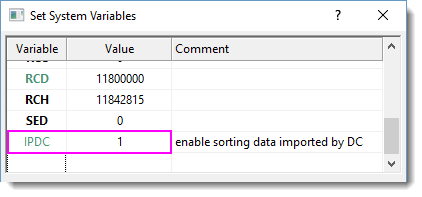
- Import data by Data Connector.
Keywords:import, connect data, CSV, TXT, DAT, Excel, Connector, sort column, sort worksheet, data integrity, data protection,