2.32 FAQ-466 Is there an auto save feature for projects?
AutoSave-Project
Last Update: 7/16/2021
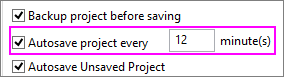
If you experience a program crash or power failure, you may be able to recover most of your work if Autosave project every x minute(s) is enabled in your Origin Options dialog:
- Choose Preference: Options and click the Open/Close tab.
- Check the Autosave project every x minute(s) checkbox. Adjust the minute(s), as needed (the default is 12 minutes).
 | This FAQ focuses on autosaving of project files, which is most useful for recovering from crashes or power failures. If you saved and exited Origin normally but later find that your saved project file is corrupted, see FAQ-464: How can I recover a damaged Origin file?
|
Origin Version = 2021b and Later
- When Autosave project every x minute(s) is enabled (default), current project contents are periodically saved to <system drive>\Users\user\Documents\OriginLab\Autosave\ (default path).
- If a named project is modified, saved and closed normally; or if an UNTITLED project is named, saved and closed normally, nothing is saved to \Autosave.
- During the session, a named project that is opened and modified will list in \Autosave as projectFileName-xxxxxx.opju or .opj. If the project is closed without saving changes, the project is named as Last-AutoSave.opju or opj, overwriting the previous Last-AutoSave.opju/opj. If the program exits suddenly, the last version of projectFileName-xxxxxx.opju or .opj should be preserved.
- During the session, UNTITLED projects will list in \Autosave as UNTITLED-xxxxxx.opju or .opj. If you close the UNTITLED project without saving as a named file, the project is named as Last-AutoSave.opju or opj, overwriting the previous Last-AutoSave.opju/opj. If the program exits suddenly, the last version of UNTITLED-xxxxxx.opju or .opj should be preserved.
- Autosave is enabled, by default, for UNTITLED projects. To disable autosave for UNTITLED projects, set @DASU=1.
- You can open the \Autosave folder by (a) choosing Help: Open Folder: Autosave Folder, (b) by opening the folder at the \Autosave path listed in Preferences: Options > System Path tab, or (c) by browsing to <system drive>\Users\user\Documents\OriginLab\Autosave (default path).
Origin Version = 2018b through 2021
- If you have enabled the Autosave project every x minute(s) check box, browse to the \Autosave folder and your project should be there, listed as projectFileName-xxxxxx.opju or .opj.
- Autosave is enabled, by default, for UNTITLED projects. UNTITLED projects will show in the \Autosave folder as UNTITLED-xxxxxx.opju or .opj.
- To disable autosave for UNTITLED projects, set @DASU=1.
- You can open the \Autosave folder by (a) choosing Help: Open Folder: Autosave Folder, (b) by opening the folder at the \Autosave path listed in Preferences: Options > System Path tab, or (c) by browsing to <system drive>\Users\user\Documents\OriginLab\Autosave (default path).
Origin Version = 2018 and Earlier
- Your project must be saved once (i.e. given a name) for autosave to work. If you start with a new Origin project that has not been saved yet to disk (and thus does not have a valid path and file name), then the autosave process will not initiate.
- The autosave process saves a copy of the current project to the \Autosave subfolder (2017 and earlier, located in the same folder as your User Files folder. Users of 2018 will find \Autosave at C:\Users\user\Documents\OriginLab).
- The project name is appended with an identifier number (e.g. "MyFileName-197238406.opj").
What happens to Autosaved files?
- If you save a project and exit Origin normally, the autosaved file is deleted.
- Since Origin 2018, the amount of time in hours that a file will be kept in the \Autosave folder is controlled by "@" System Variable @ASKH.
For more information, see Autosaving your project file.
What is "Autosave Unsaved Project"?
Closing or exiting without attempting to save your project -- either an UNTITLED project or a modified, named project -- will trigger a prompt to Save As/Save. Beginning with Origin 2018, if you say NO and (1) Autosave Unsaved Project is enabled in Options (default) and (2) the project file size is less than the value of LabTalk system variable @USM (default = 20MB), the project file will be saved automatically before closing.
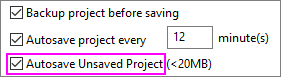
- If the project is UNTITLED, project contents are saved to C:\Users\User\Documents\OriginLab\Unsaved\UNTITLED.
- If the project is a modified, named project, project contents are saved to C:\Users\User\Documents\OriginLab\Unsaved\projectName.
Because files are only saved when you decline to save on close or exit, this feature may not produce a source of recoverable data. However, the user should know that files may exist. By default, unsaved projects are kept for 7 days.
To recover an unsaved project:
- Run Origin.
- Click Help: Open Folder: Unsaved Projects.
- Browse the folder for your unsaved file.
See Also:
Keywords:power, crash, lose, work, backup, autosave, recover, unsaved