2.129 FAQ-1144 How do I Autofill my rows or columns with data?
Autofill_Row_Column_Data
Last Update: 10/26/2025
Origin provides several ways to auto-populate columns and rows with data.
Cell formulas and column formulas can be set and then dragged to fill other cells.
 | You can switch between numeric view and formula view in the worksheet by
- Show Formula button
 on the worksheet level mini toolbar, or, on the worksheet level mini toolbar, or,
- Edit: Edit Mode (Ctrl + Alt + B) main menu.
|
Cell Formulas
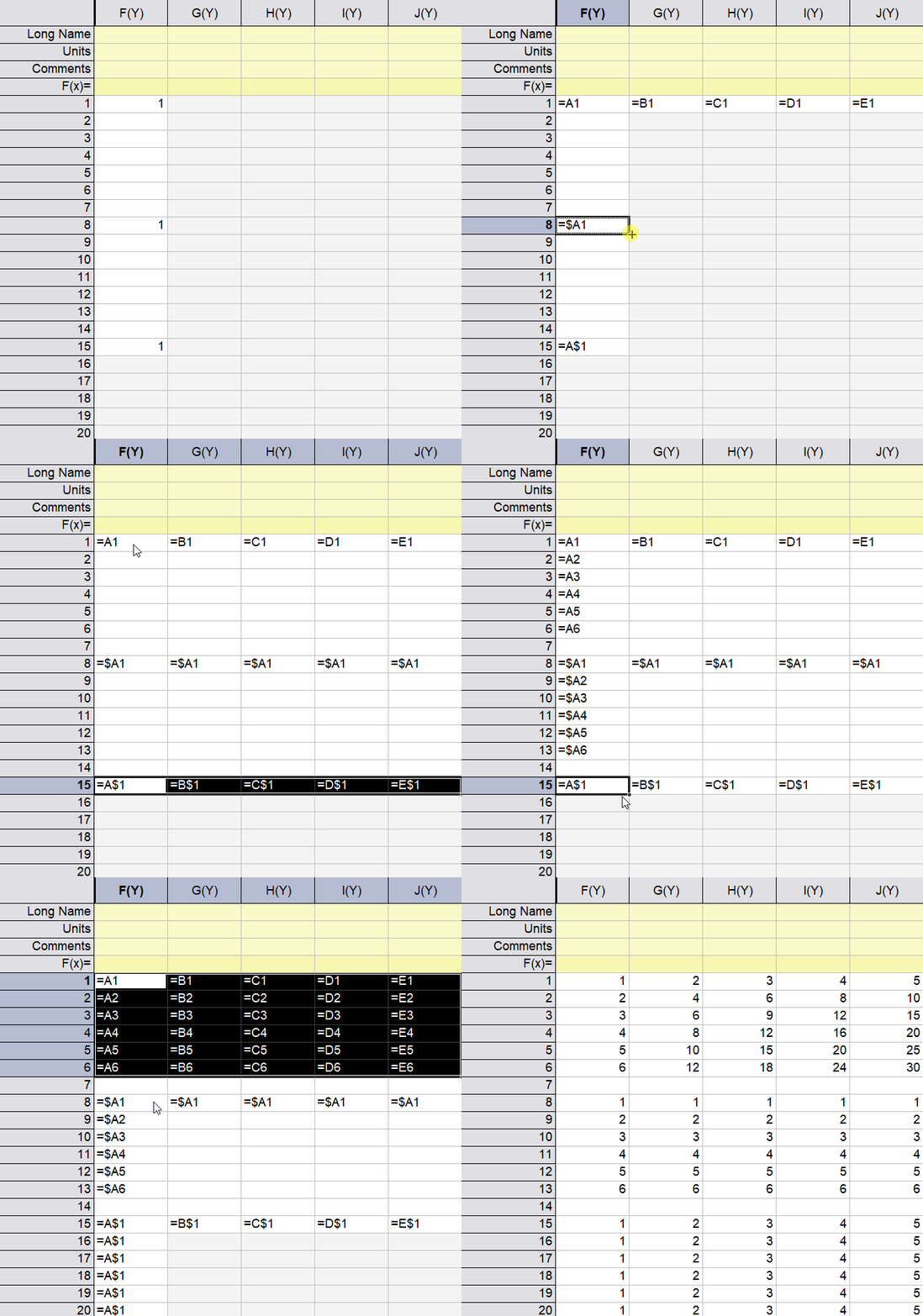
Origin supports diagonal drag filling a block of cells.
- Use the $ notation to fix either the column or row when drag filling.
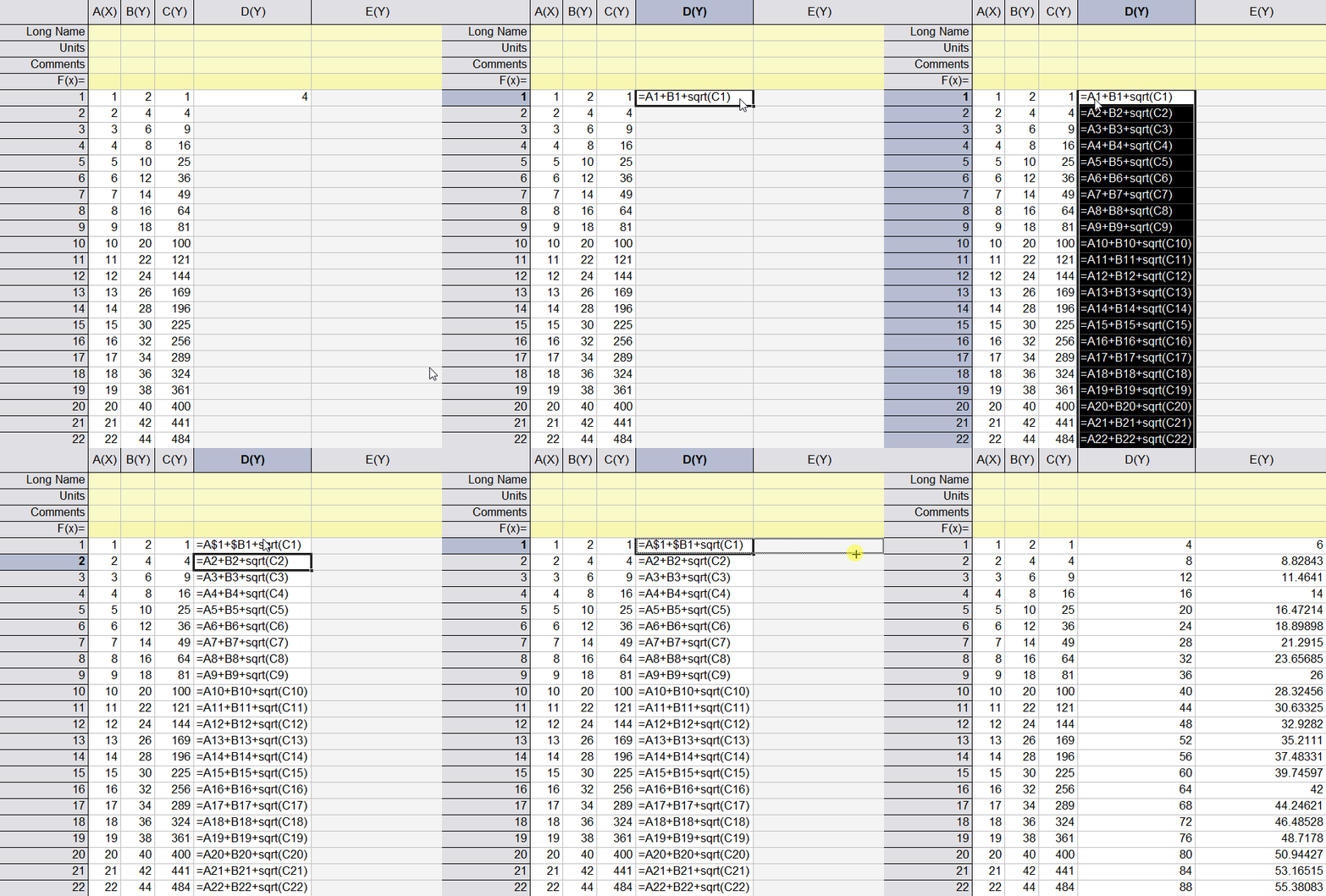
- Double-click the bottom-right corner of the cell to autofill to the column end with the selected cell formulas.
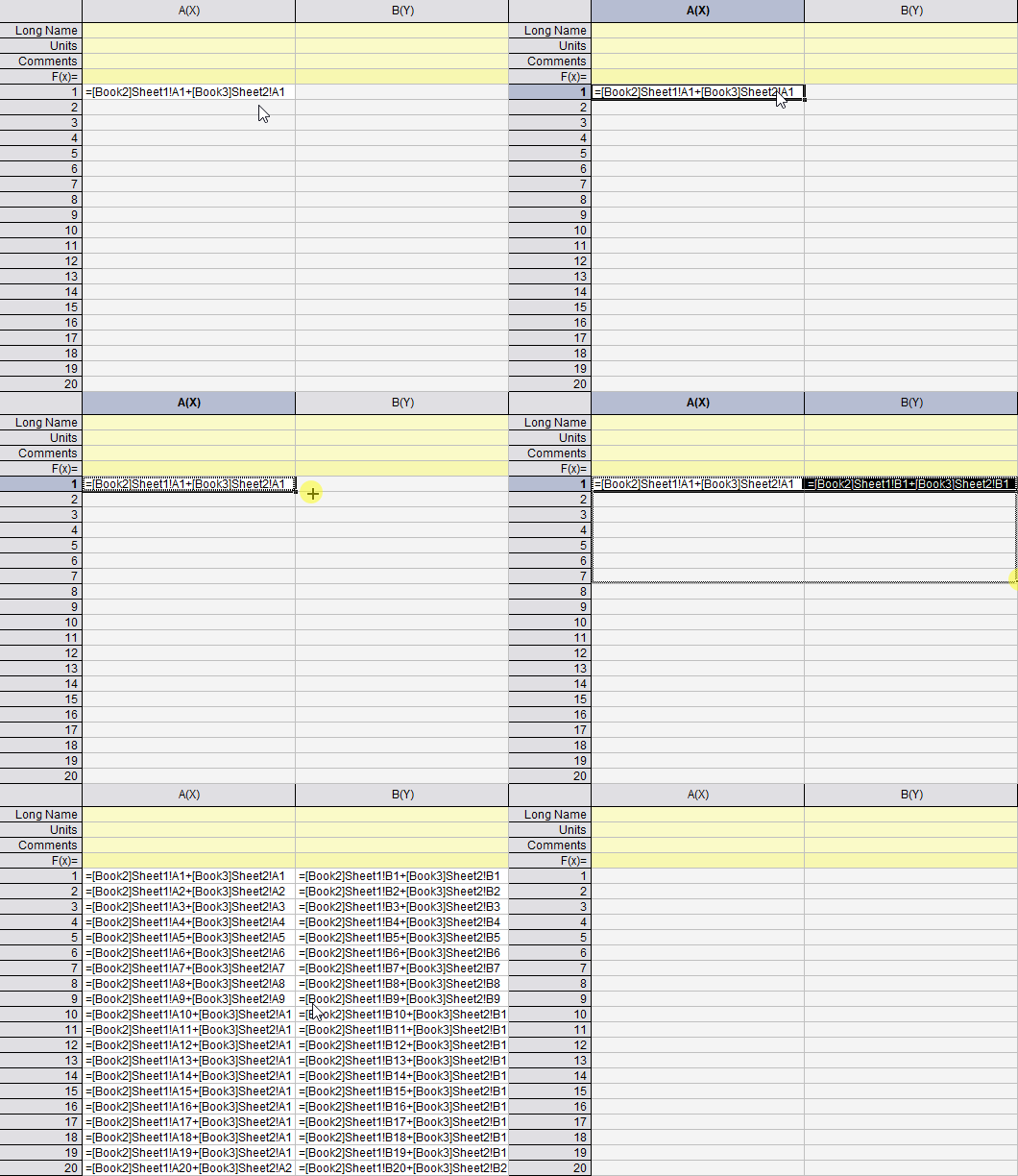
- Use the workbook and sheet reference syntax to combine data from other workbooks or sheets in cell formulas.
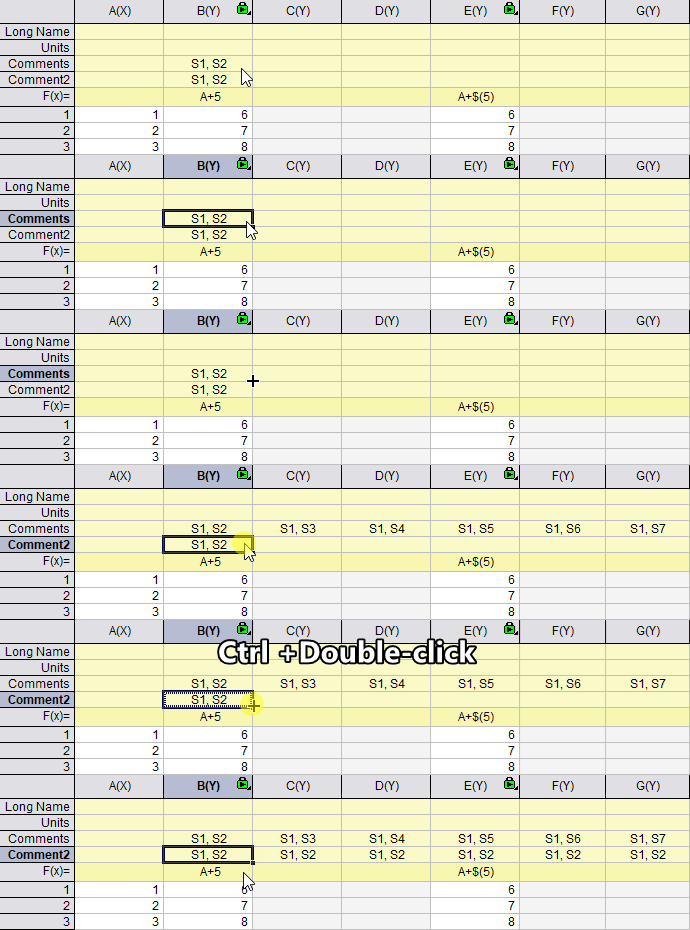
- Column label cells also supports autofill. Hold Ctrl while dragging or double-clicking to fill without incrementing.
- When you use syntax of row references in square brackets, column[row], like sum(A)[1] or A[1], to auto-adjust the row references to be relative while autofill, press Ctrl when dragging.
Column Formulas
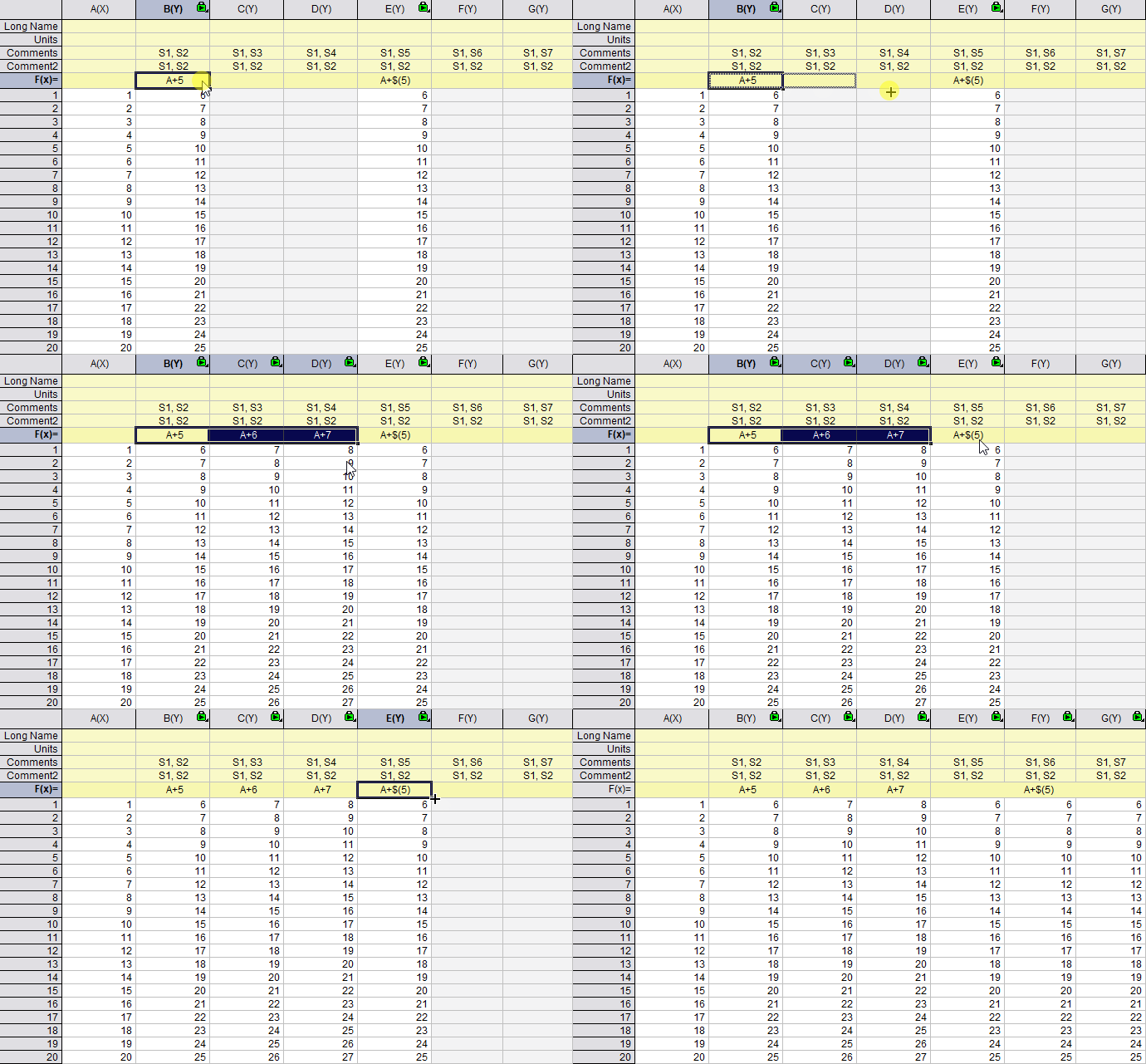
- Double-click the bottom-right corner of the formula cell (F(x)) to automatically fill all cells to the right. Hold Ctrl while dragging or double-clicking to fill without incrementing. Use the $() notation to fix a constant.
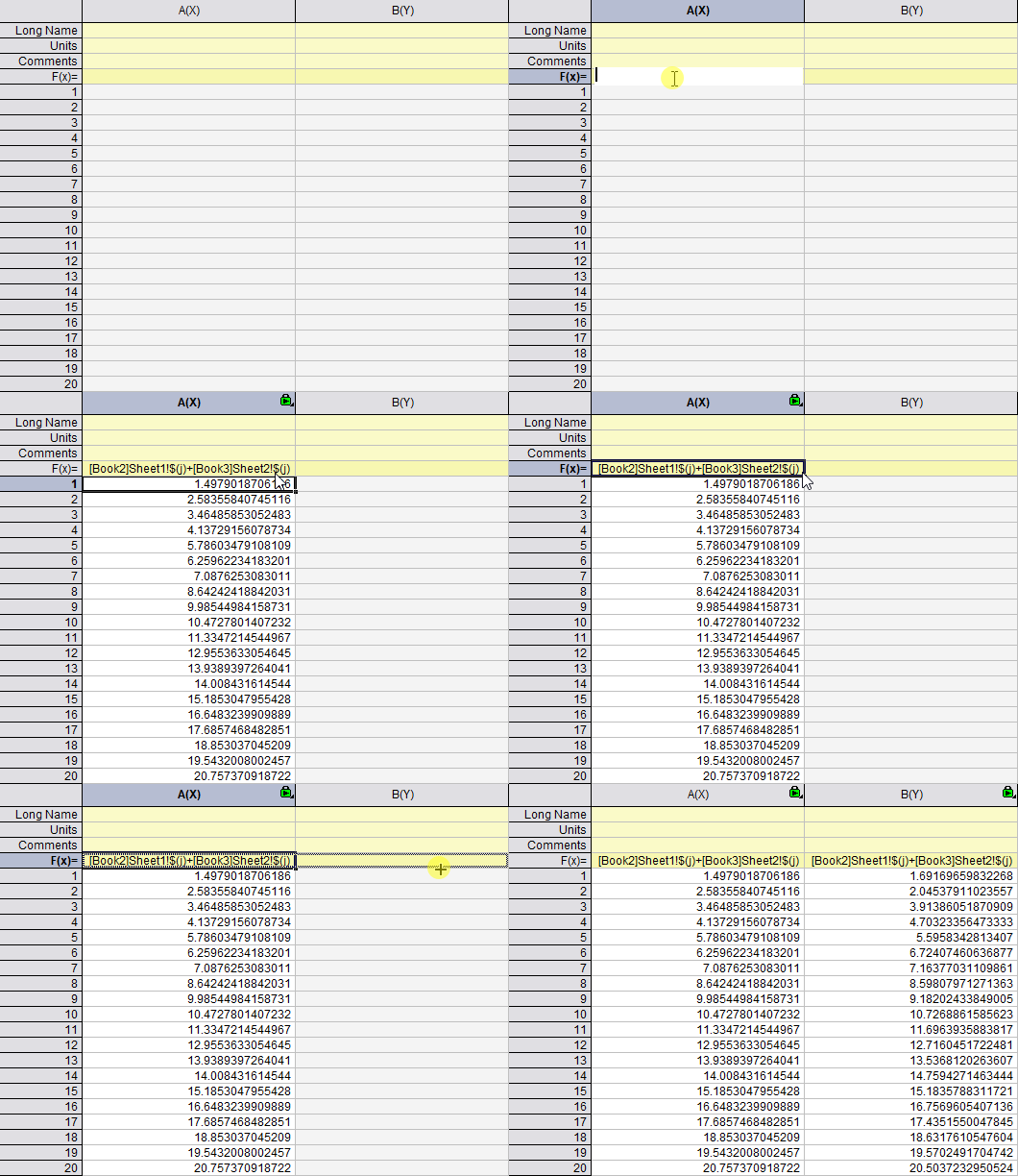
- Use the workbook and sheet reference syntax to combine data from other workbooks or sheets in column formulas.
For the column formulas, $(j) is the column index of the current column.
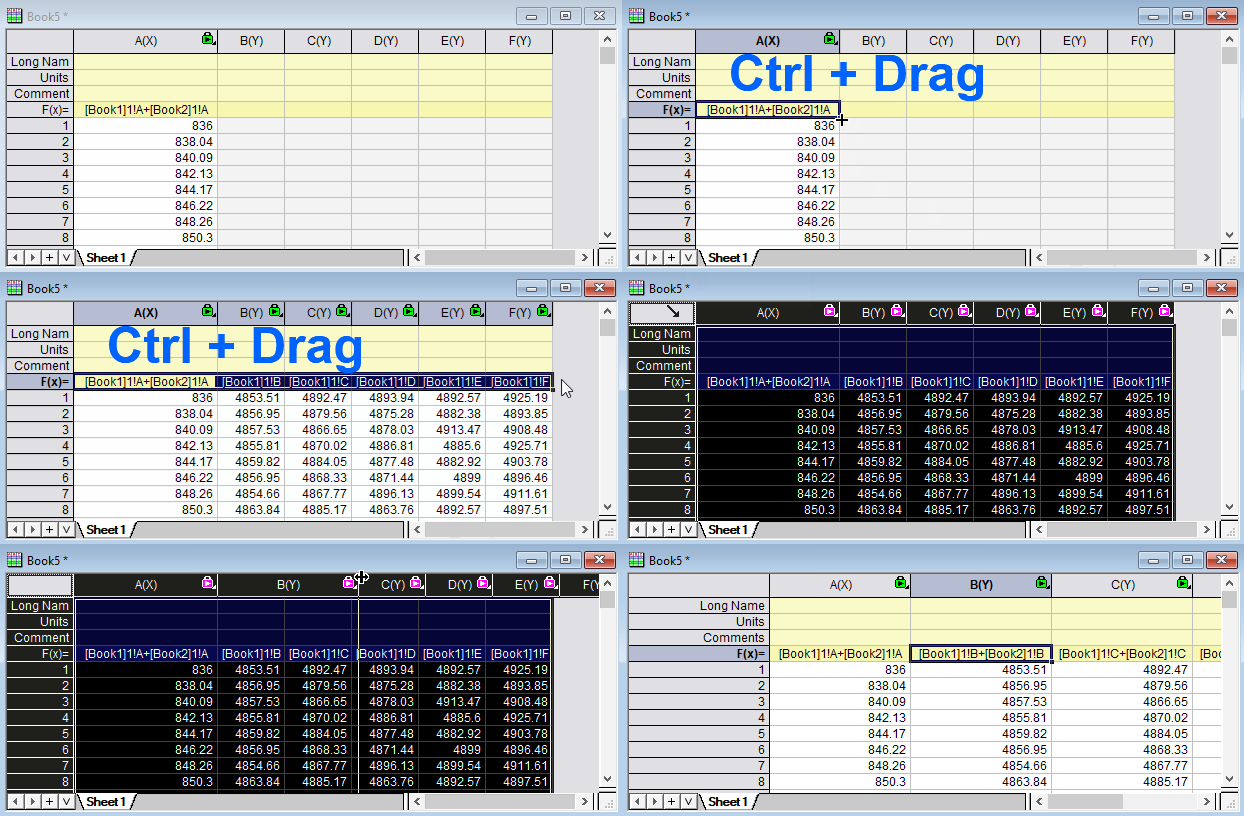
- If you use column ShortName in the syntax, press Ctrl key while dragging to auto fill with incrementing.
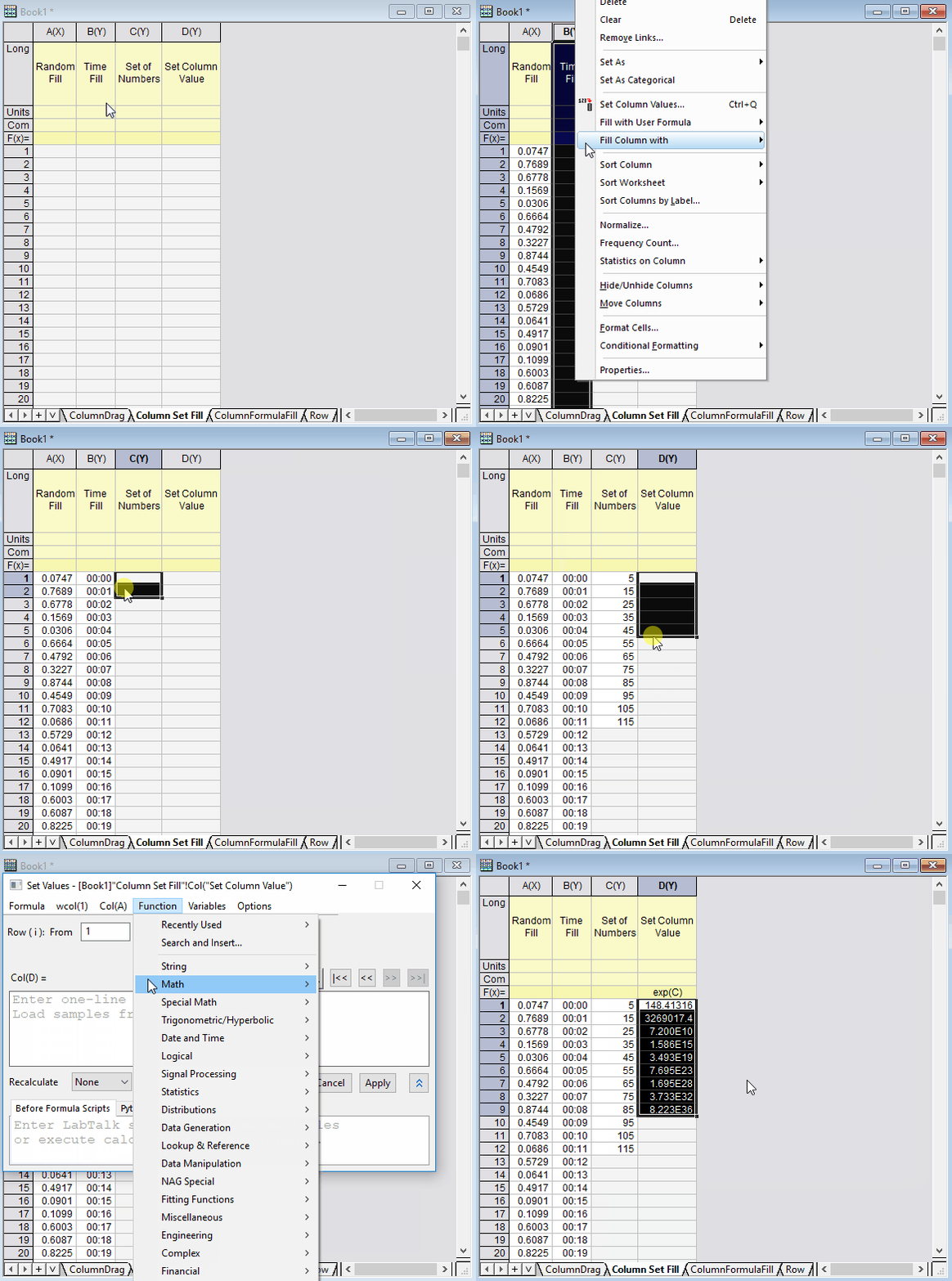
Flash Fill
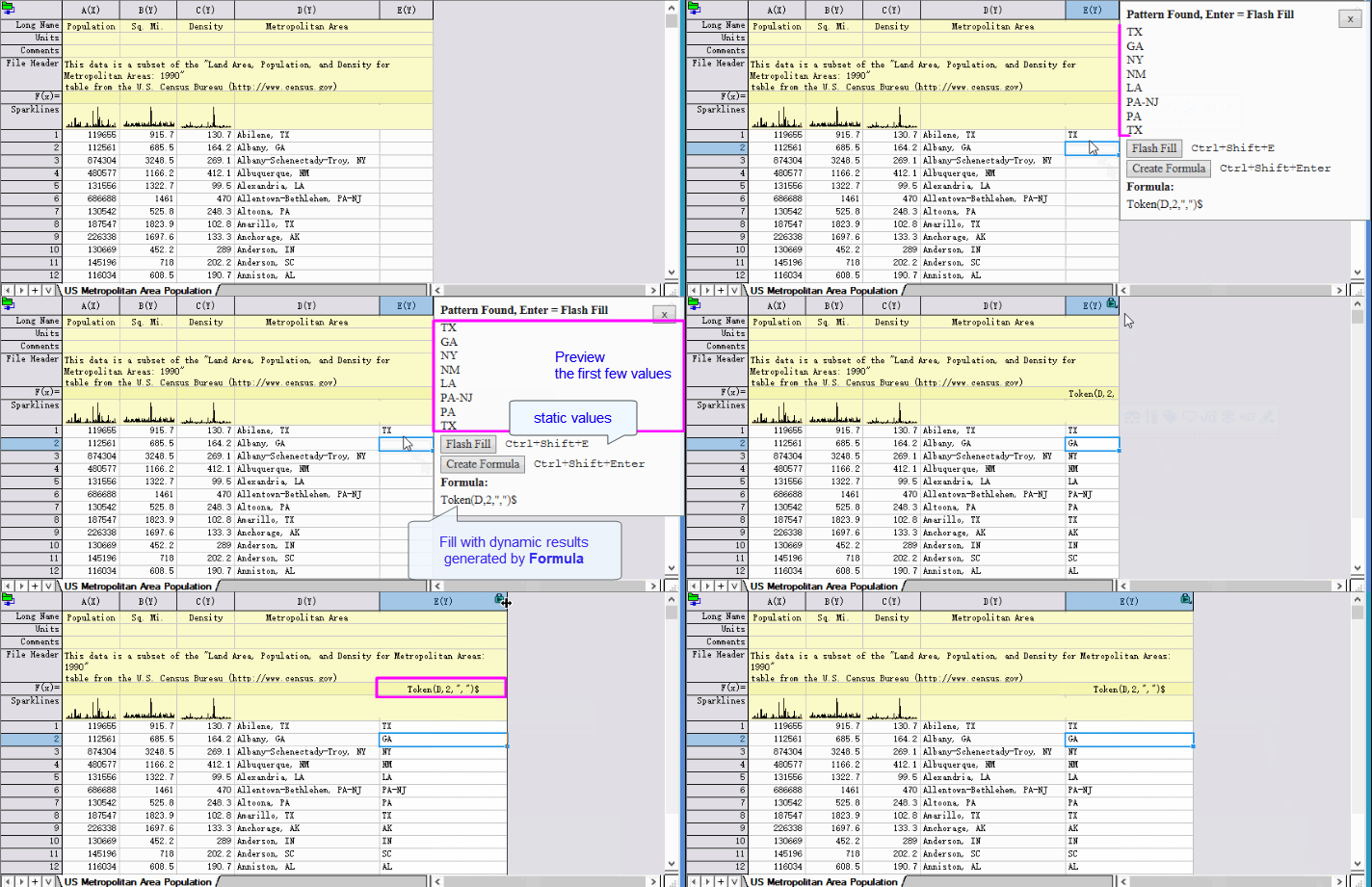
If the columns on the left show a clear pattern, type the expected result into the first cell of the target column. Origin infers the rule, proposes suitable functions or formulas in a pop-up preview, and lets you fill the rest with:
- plain values (Ctrl + Shift + E): static entries that stay fixed when the source data change.
- live formulas (Ctrl + Shift + Enter): dynamic results that update automatically whenever the reference columns are modified.
Keywords:show categorical number, category index, category value
