1.35 FAQ-151 How do I add the Origin Project Path to a text label?
Add-Project-Path-as-Label
Last Update: 12/21/2017
You may want to add the path/location of your Origin Project on disk as a label in your graph so that when the graph is printed that information is available for reference.
In order to do this you need to first save your project to disk (if not already saved).
Then do one of the following:
Method 1
Click built-in Project Path button on Tools toolbar.
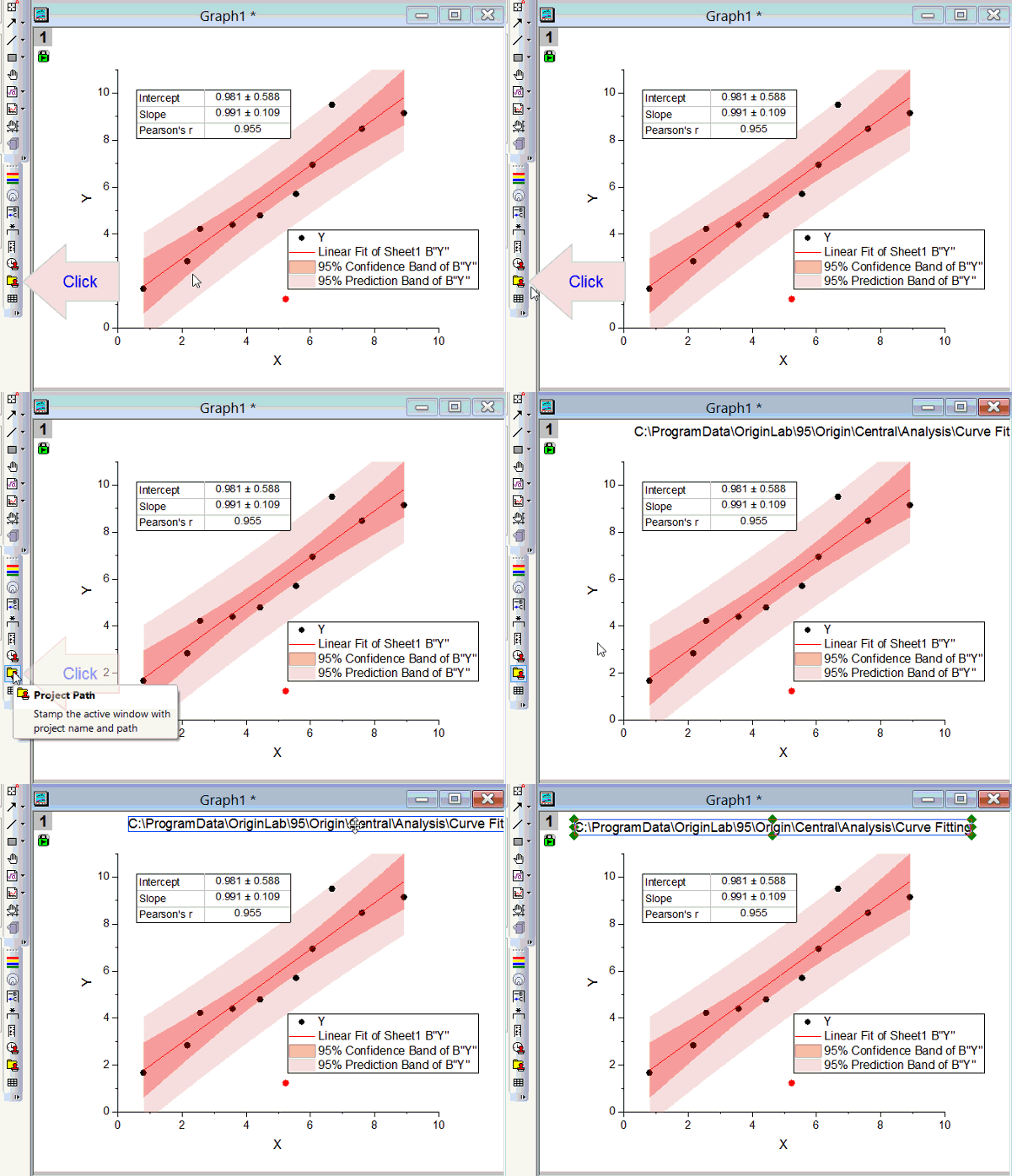
Method 2
- Right click on the graph where you want to place the label, and select Add Text... context menu.
- In the label edit box, add this string:
%X%G
Add other characters to your label as desired, and then click outside to exit edit mode.
- Right click on the label and select the Properties context menu.
- Go to Programming tab, set the Link to (%, $), Substitution Level drop-down to 1 and click OK.
- In the Text tab, change the text so that it reads as below:
\v(%X%G)
and press OK to close dialog.
NOTE: It is necessary to enter \v() in the Text tab of Text Object dialog. Making this change in the label directly using in-place editing does not work.
Keywords:\, \v, verbatim, location, disk, OPJ
Minimum Origin Version Required: 7.5