1.136 FAQ-742 How to add the Mean line to my curve?
Add-Meanline
Last Update: 12/19/2017
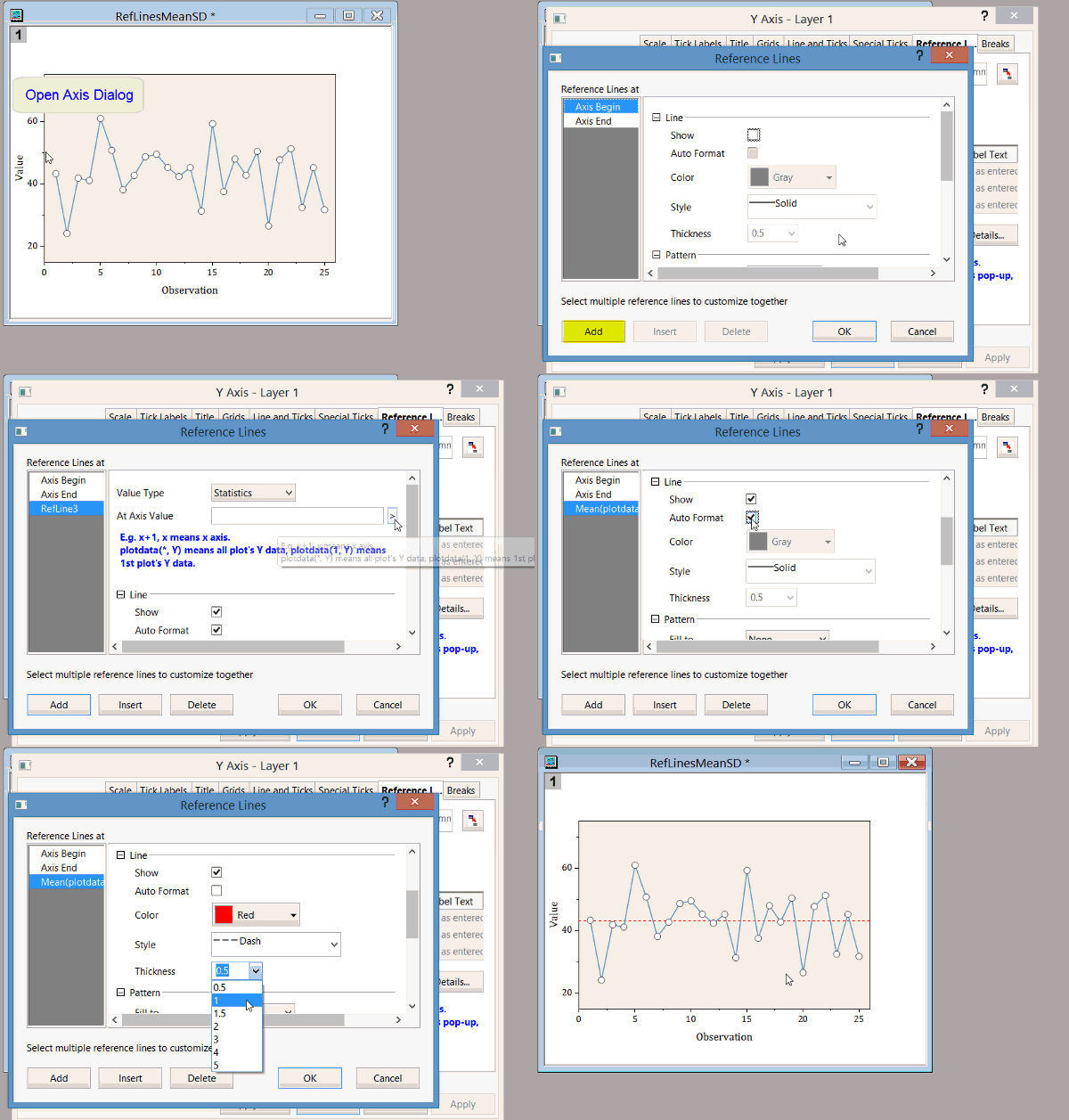
By Adding Axis Reference Line
Note: this method only works in Origin 2018 and higher versions.
- Open Axis dialog.
- On Reference Lines tab, click Details button.
- Click Add button to add a statistics reference line.
- :
By Statistics Gadget
You can use the Statistics gadget to add a Mean line to a curve or only part of the curve.
- Activate the graph window and select Gadgets: Statistics from the main menu.
- In the dialog that opens, click OK to add a Region of Interest (ROI) box to the graph. A Mean line is added. Click on the ROI and move or resize, as needed, so that it covers only the data points of interest.
- Click the triangle button at the top-right and select Tag Lines from the fly-out menu. This will add the Mean line as an object; if you close the ROI by clicking on the gadget's X button, you won't delete the Mean line.
See here for a detailed example.
Keywords:add mean line, statistics gadget
Minimum Origin Version Required: 2016 SR0