 (docked, by default, to the lower-left side of your Origin workspace). If you don't see this button, choose (View:Toolbars) and enable the Add Object to Graph toolbar.
Last Update: 10/7/2022
(docked, by default, to the lower-left side of your Origin workspace). If you don't see this button, choose (View:Toolbars) and enable the Add Object to Graph toolbar.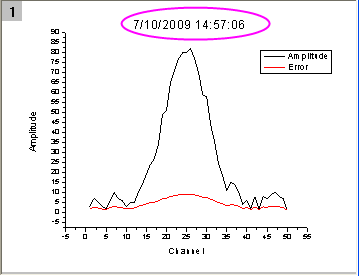
The Date & Time stamp is a static text object. It registers the date and time at which the toolbar button is clicked. It is saved with the graph and will only be modified if you click the Date & Time button again, while the window is active. Note that only one timestamp object can be added to a given window.
To modify the date-time format of the stamp:
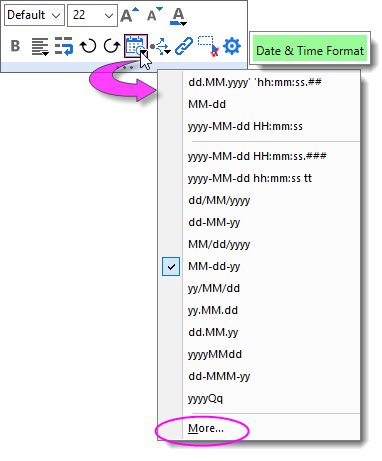
If you modified your Date & Time stamp format in an earlier version of Origin, you would have saved it to a file called Standard.ogs in User Files (UFF). You can either (a) continue to edit that file (see the next section) or (b) if you are sure you don't need any other custom scripts in that Standard.ogs file, you can delete it and use the newer method of timestamp customization.
 | This method of adding a "time stamp" does not work well if you want to save a "dynamic" stamp that works with a custom graph template. In such a case, you could use one of the methods described in the Origin Help file. |
By default, the Date & Time stamp adds date-time in the following format:
M/d/yyyy HH:mm:ss // e.g. 3/4/2021 15:19:58
When clicked on, the Date & Time button runs a line of script in the [DateTime] section of the STANDARD.OGS file located in your Origin folder. That line of script reads like one of the following:
label -s -sa -dc (dXFactor*page.width) (dYFactor*page.height) -n timestamp $(@D,D10); // 2019b and earlier
label -mg -s -sa -dc (dXFactor*page.width) (dYFactor*page.height) -n timestamp $(@D,D10); // changed v2020
The $(@D,D10) portion of this script specifies date/time format. This corresponds to the 11th format in the Origin Date Display list (count starts at zero so (D10) = 11th in list). To see the list, open the Properties dialog for any worksheet column, set Format to Date, then click on the Display drop-down. Remember to count down the list starting with zero (0).
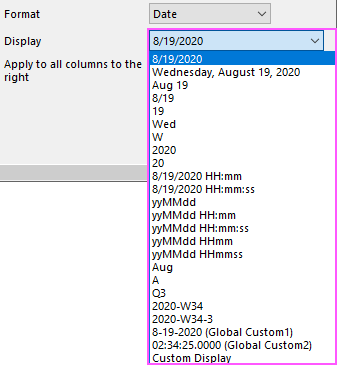
When you know the index number of the date format that you want:
If you need a format that is not in the standard list, you can define two Custom Date Formats on the Miscellaneous tab of your Options dialog (Tools: Options or Preferences: Options) and they will show at the bottom of the Display list.
Keywords:date, time, stamp, timestamp, customize graph, add date and time, time stamp, add stamp, Standard.ogs