
Select one worksheet cell, multiple worksheet cells, a whole column or multiple columns. Right-click the selection and choose Format Cells... to open the wcellformat X-Function and specify the cell(s) format.
Note that when you open this dialog with whole range selected (i.e. a complete column or a worksheet), several options will be hidden in this dialog, they are Format, Display, Digits, Significant Digits and Decimal Number.
This is an uneditable textbox that displays the cell range you have selected.
This checkbox is used to specify whether rich text formatting (for example, superscript and subscript) is enabled for the selected cells. Please note that when this checkbox is selected, the Float and Ellipsis will not be editable.
When this box is unchecked, the format buttons  are unavailable for in-place edit mode. If Rich Text is enabled, you can double-click in the specified cell to enter edit mode, select some or all of the cell contents and note that these buttons are enabled. You can then use them to apply rich text formatting.

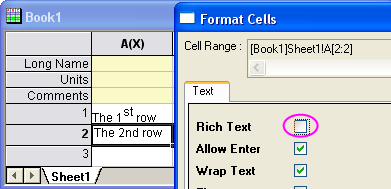
This box allows text entry in the specified cell. If it is checked, double-click in the specified cell to enter edit mode and use SHIFT+ENTER for multi-line entry.
If the length of text exceeds the width of the cell, the text will be wrapped automatically to fit the cell width. Note that Origin does not wrap in the middle of words.
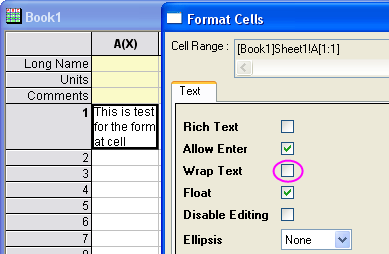
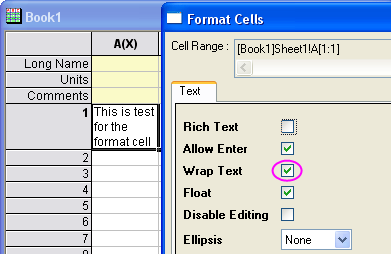
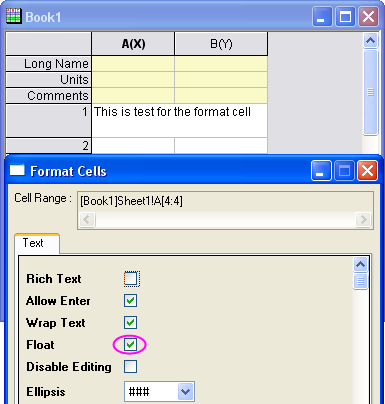
It allows text in this cell to overflow into the cell on its right. For example, suppose Float for Cell[1, 1] is checked. When the length of the text in Cell[1, 1] is greater than the cell width and Cell[1, 2] is empty, the text in Cell[1, 1] will overflow into Cell [1, 2], as shown in the below screenshot.
When this box is checked, you cannot edit cell contents.
When text length exceeds cell width, you can opt to use floating or wrapping to proper display the text. If neither floating nor wrapping is used, opt to display ellipsis to cue the user that the text cannot be fully shown.
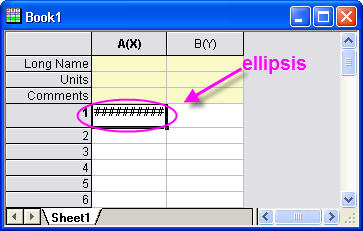
This option is used to automatically merge adjacent cells that contain same text. Use this drop-down list to specify the dynamic merge direction. It can be Horizontal, Vertical or Both.
Use this drop-down list to select the formatting of the cell. This option will take effect only when current column format is Numeric or Text & Numeric in Column Properties dialog box.
Specify display form for numeric, date and time data. The functionality is same as the options in Column Properties dialog box. The only difference is that it controls the format for cells, and not the entire column.
Specify decimal number for numeric data. There are 3 options in drop-down list: Default Decimal Digits; Set Decimal Places=; Significant Digits=
This option is shown only when Digits is Significant Digits=. It is used to specify number of Significant Digits.
This option is shown only when Digits is Set Decimal Places = . It is used to specify number of decimal.
This option specifies the font for selected cells.
This option specifies the font size for selected cells.
This option specifies the text color in selected cells.
This option specifies the color filled in selected cells.
Apply Button: Apply setting to selected cells without closing the dialog.
OK Button: Apply setting to selected cells and Close the dialog.
Cancel Button: Close the dialog and discard the changes.